









Article
Monitor Buying Guide for Work, Study and Gaming

A good monitor can make work and study feel less tiring and more productive. Whether you are working from home, studying online or gaming after hours, the right screen reduces eye strain, gives you more room for windows and makes everything look sharper.
Monitor specifications can be confusing, though. This guide explains the important terms in plain language and helps you match a monitor to how you actually use your computer.
Choose the Right Size and Resolution
Size and resolution work together. A larger screen with low resolution looks fuzzy, while a small screen with very high resolution can make text tiny unless you use scaling.
- Full HD (1080p): fine for smaller monitors and basic office work
- QHD (1440p): a popular sweet spot for mid-size monitors, giving more workspace and sharper text
- 4K (2160p): very sharp on larger monitors, great for design, photo editing and video, but needs a capable computer for gaming
Think about desk depth too. A very large monitor on a shallow desk means sitting too close, which can be uncomfortable for long sessions.
Pixel density is what makes text look crisp. As a rough guide, the bigger the screen, the higher the resolution you need for text to stay sharp at a normal viewing distance. If you spend all day reading documents and code, sharper text noticeably reduces fatigue.
Panel Types in Simple Terms
Monitors use different panel technologies, each with strengths.
- IPS: good colour accuracy and wide viewing angles, popular for office work and design.
- VA: strong contrast with deep blacks, good for movies and general use.
- TN: fast and affordable but weaker colours and viewing angles; less common now.
- OLED: excellent contrast and response, found in premium models; consider burn-in guidance for static content such as taskbars.
For most home and office users, an IPS panel is a safe all-round choice.
If you do colour-sensitive work such as photo editing, printing or brand design, look at colour gamut coverage in reviews and consider a calibration tool. For general office use, factory settings on a decent IPS panel are usually more than good enough.

Refresh Rate and Response Time
Refresh rate, measured in hertz, is how many times the screen updates per second. Standard monitors refresh around 60Hz, which is fine for documents and browsing. Higher refresh rates make motion look smoother, which gamers notice immediately and many people enjoy even when scrolling.
Key takeaway: if you game, a higher refresh rate monitor is one of the most noticeable upgrades. If you mainly work with documents and spreadsheets, spend your budget on size, resolution and comfort instead.
To use a high refresh rate, your computer and cable must support it. Check the graphics card, laptop port and cable specifications before buying.
Ports and Connectivity
Look at the back of the monitor and your computer to make sure they match. Common connections include HDMI, DisplayPort and USB-C. A monitor with USB-C that supports video and charging can be very convenient for laptops, letting one cable handle display, power and accessories.
Some monitors also include USB hubs, built-in speakers or a headphone jack. Built-in speakers are usually basic, so do not count on them for good sound.
HDR labels can be confusing. Many budget monitors advertise HDR support but lack the brightness to show a meaningful difference. Treat basic HDR badges as a minor bonus, not a reason to buy, and check reviews that measure real brightness.

Comfort and Eye Strain
Long hours at a screen can cause eye strain and neck pain. A monitor with a height-adjustable stand helps you place the top of the screen at or slightly below eye level. If the stand is fixed, check whether the monitor supports a standard VESA mount for an arm.
- Use flicker-free and low blue light settings if available
- Adjust brightness to match your room, not the maximum
- Follow the 20-20-20 habit: every 20 minutes, look at something about 20 feet away for 20 seconds
- Position the monitor to avoid glare from windows
If you are building a home office, our guide to a budget work-from-home tech setup covers other upgrades that matter.
One Big Monitor or Two Smaller Ones?
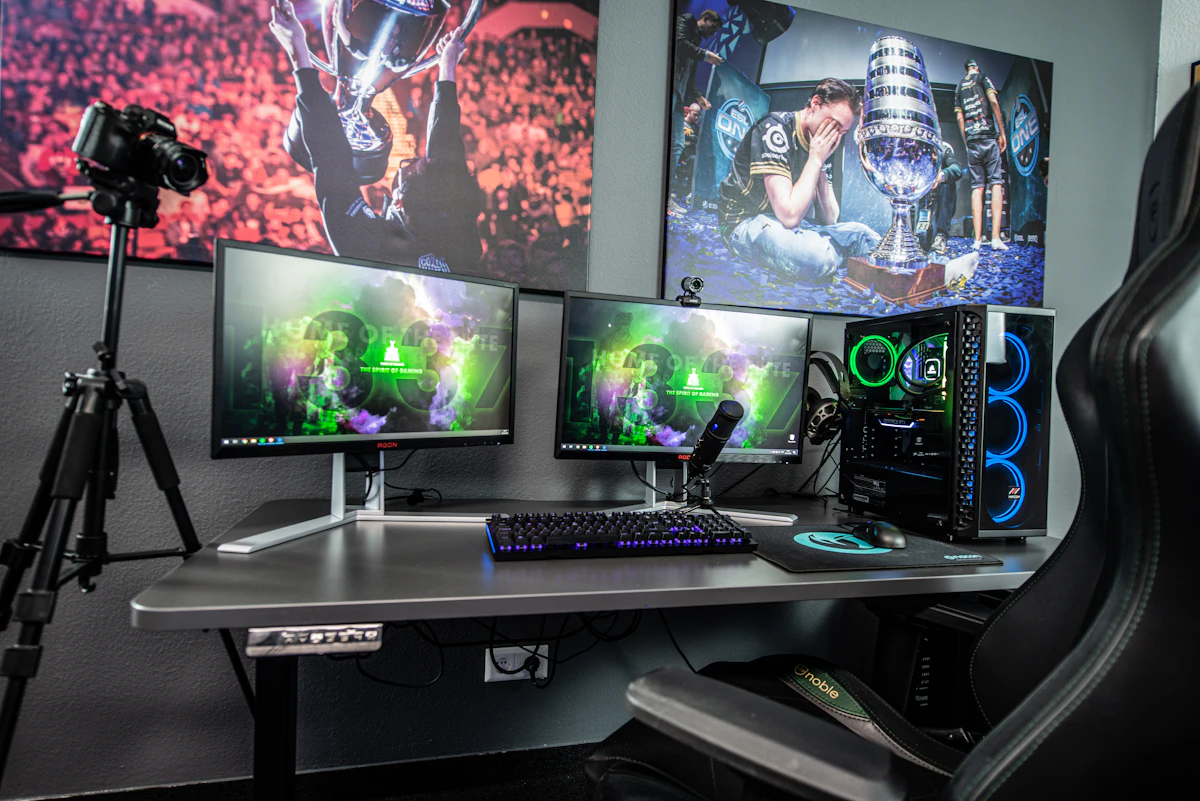
Some people prefer two monitors side by side, while others choose one ultrawide screen. Dual monitors are flexible and often cheaper, letting you keep email on one screen and work on another. Ultrawides offer a seamless wide view that suits video editing, spreadsheets and immersive games.
If you use a laptop, even a single external monitor turns it into a far more comfortable workstation. Pair it with an external keyboard and mouse to protect your posture.
Whichever setup you choose, cable management helps keep the desk tidy and safe. Simple velcro ties or a cable tray under the desk make cleaning easier and reduce the chance of cables being pulled loose.
FAQ
Is a curved monitor worth it?
Curves help most on very wide screens, where they keep the edges at a comfortable viewing angle. On standard-size monitors, it is mostly personal preference.
Can I connect a monitor to my laptop?
Almost always. Check the laptop's ports, such as HDMI or USB-C with display support, and use a matching cable or adapter.
Do I need a 4K monitor for office work?
Not necessarily. A QHD monitor gives plenty of sharpness and workspace for documents and spreadsheets at a lower cost.
Match the monitor to your work, your desk and your computer. Get size, resolution and comfort right first, then add gaming features only if you will truly use them.